

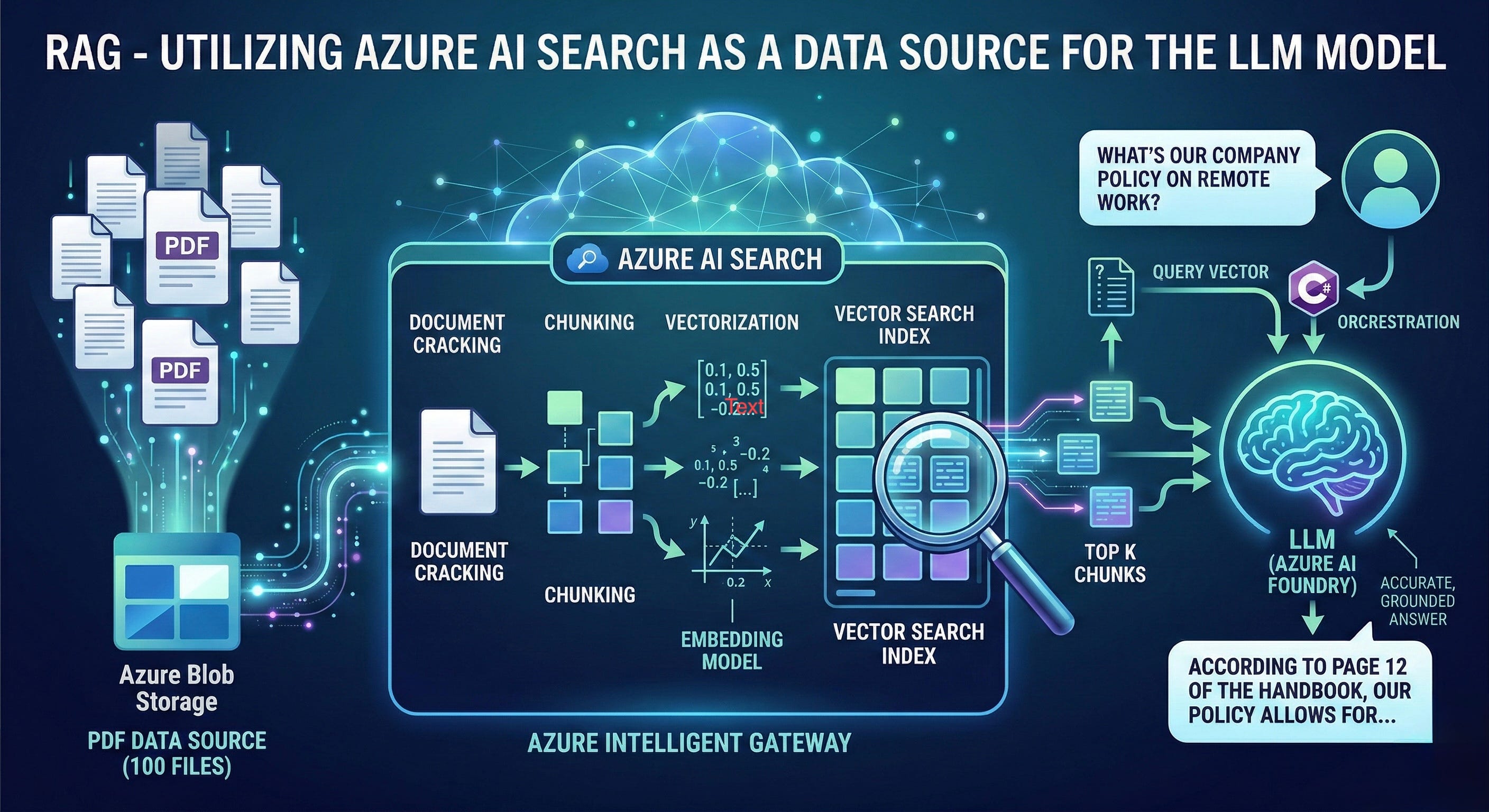
In the world of Enterprise AI, a Large Language Model (LLM) is like a brilliant scholar who has read almost everything on the public internet but has never seen your company’s internal documents. If you ask it about your specific “Q3 Project Roadmap” or “Internal Remote Work Policy,” it might guess—or worse, hallucinate.
To bridge this gap, we use RAG (Retrieval-Augmented Generation): check here . Today, I’ll walk you through how to use Azure AI Search as the ultimate “librarian” for your LLM, specifically using C# and Azure AI Foundry.
Instead of trying to “teach” the LLM your data by retraining it (which is slow and expensive), we connect it to a data source.
By using a C# Console Application demo, we can orchestrate a flow where the LLM doesn’t just generate text; it first searches your private data (stored in Azure Blob Storage) via Azure AI Search and then uses that specific information to form an answer.
The Tech Stack: Azure Resources
To build this, we utilize three core pillars of the Azure ecosystem:
Azure Blob Storage: The “Warehouse” where your raw PDF files live.
Azure AI Search: The “Search Engine” that indexes, chunks, and vectorizes those PDFs.
• 3. Azure AI Foundry: The “Orchestrator” where we deploy the LLM and manage the connection between the model and the search index.
How RAG Actually Works
Attaching a data source isn’t just a simple “plugin.” Because LLMs have Token Limits (a maximum amount of text they can process at once), we can’t just send 100 PDFs into a single prompt. This is where the RAG pipeline shines:
1. Ingestion & Document Cracking
The Azure AI Search Indexer reaches into your Blob Storage. It “cracks” open your PDFs and extracts the raw text.
2. Chunking & Vectorization
This is the “Magic” step. To stay within token limits, the indexer breaks the text into Chunks (smaller pieces, like 500 words each).
Each chunk is then sent to an Embedding Model.
The model converts the text into a Vector (a long list of numbers representing the meaning of the text).
3. The Retrieval (The “R” in RAG)
When a user asks a question in your C# app, the app doesn’t send the question to the LLM yet. Instead:
The question is turned into a vector.
Azure AI Search finds the “top 3” chunks in your index that are mathematically closest to the question.
4. Generation (The “G” in RAG)
Your app sends a “Super-Prompt” to the LLM:
“Here is the context from our PDFs: [Chunk 1, Chunk 2]. Now, based ONLY on this context, answer the user’s question: [User Query].”
Why Use Vector Search?
Traditional keyword search looks for exact words. If you search for “Salary,” you might miss a document that says “Compensation.”
Vector Search understands intent. Because it operates on mathematical “meaning,” it knows that “Salary” and “Compensation” are the same thing. This makes your AI much more intuitive and “human-like” in how it finds information.
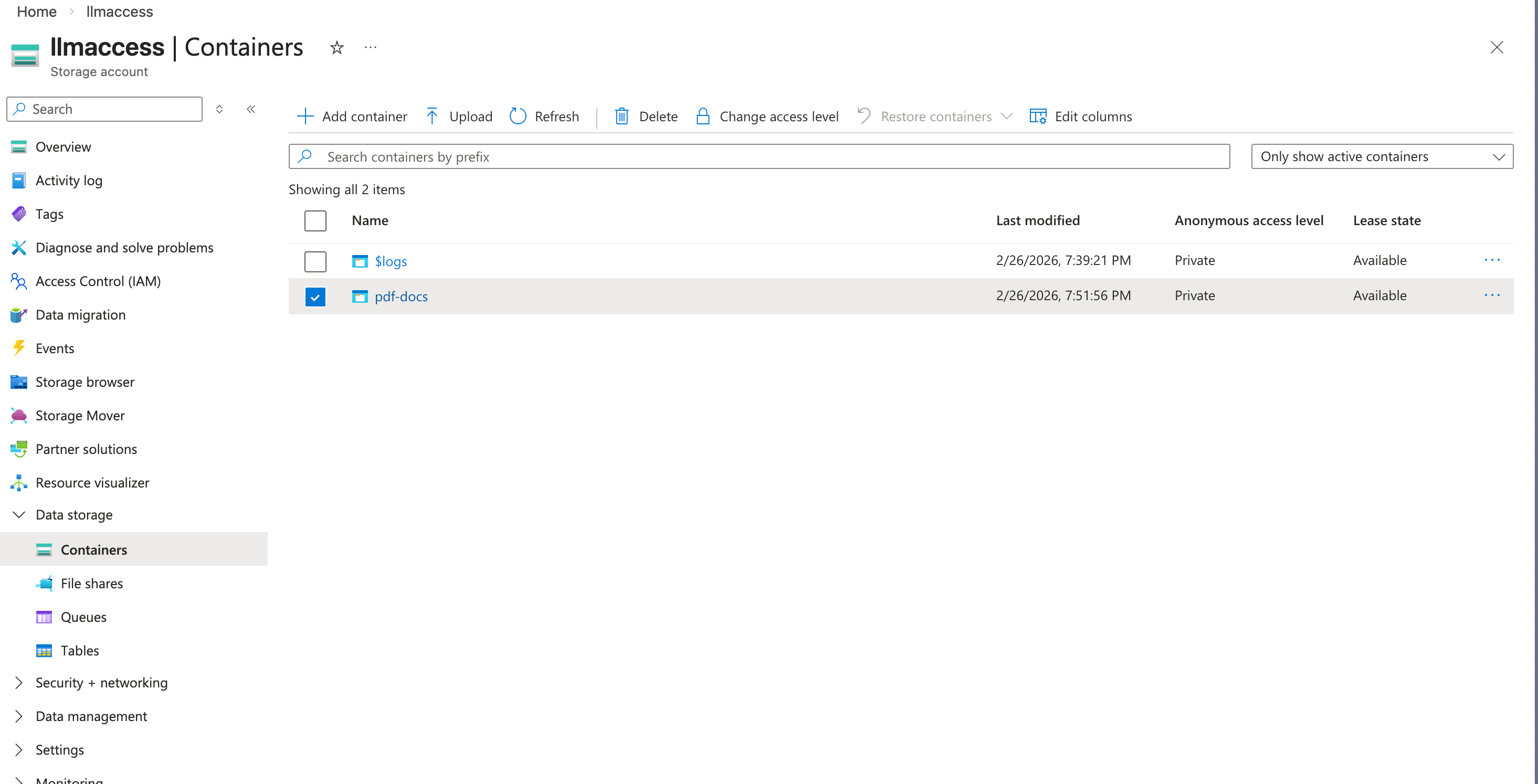
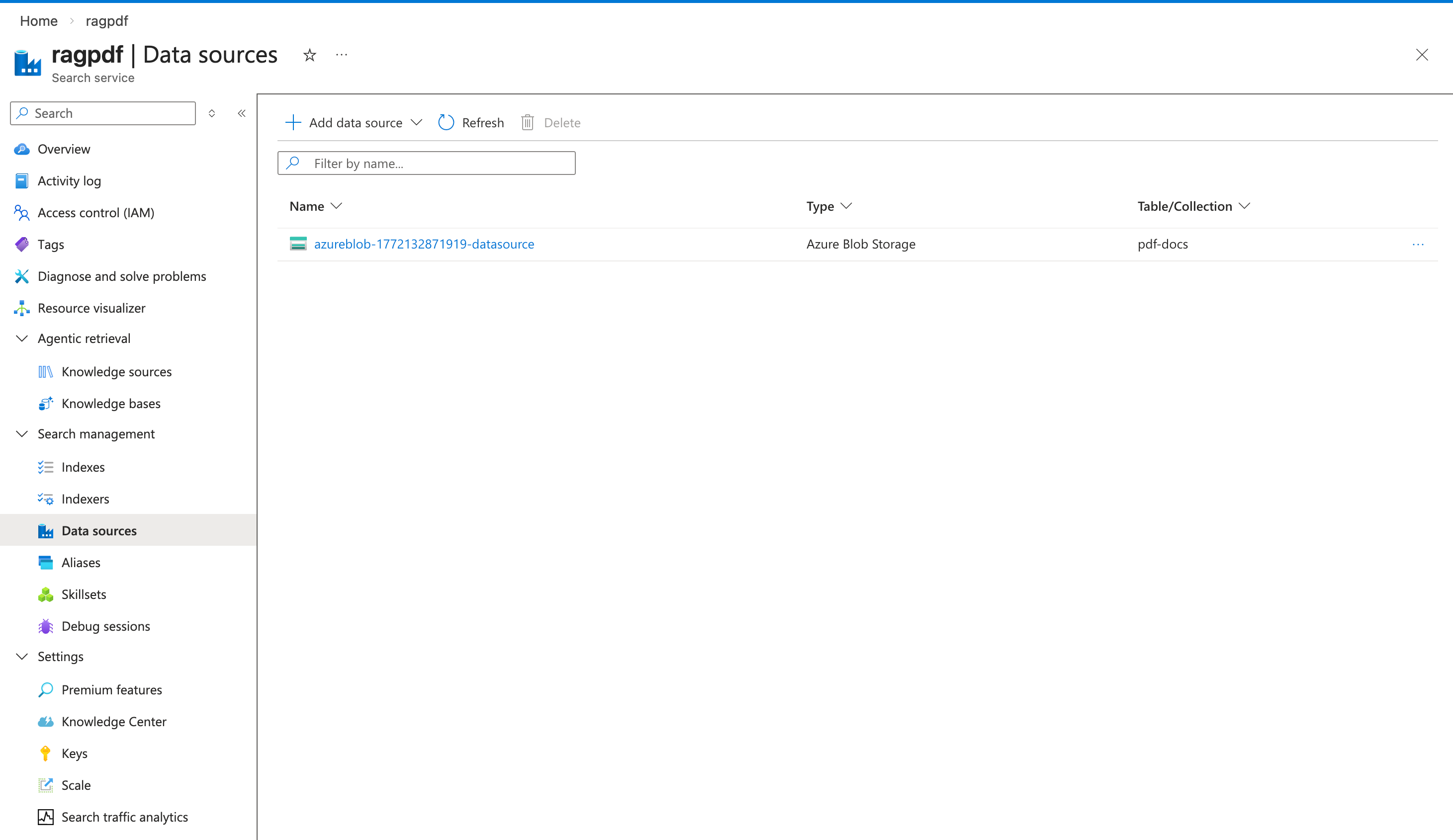
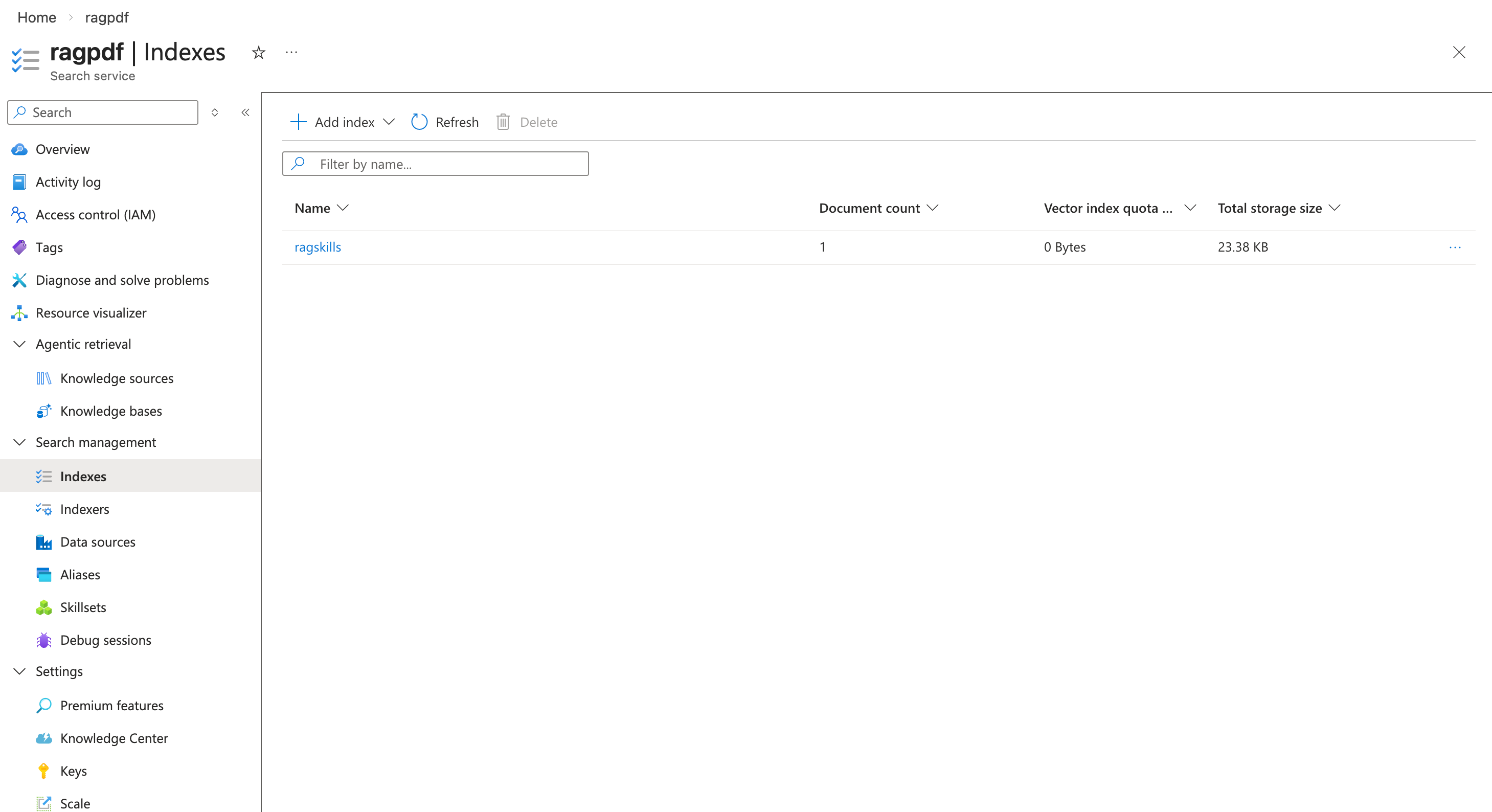
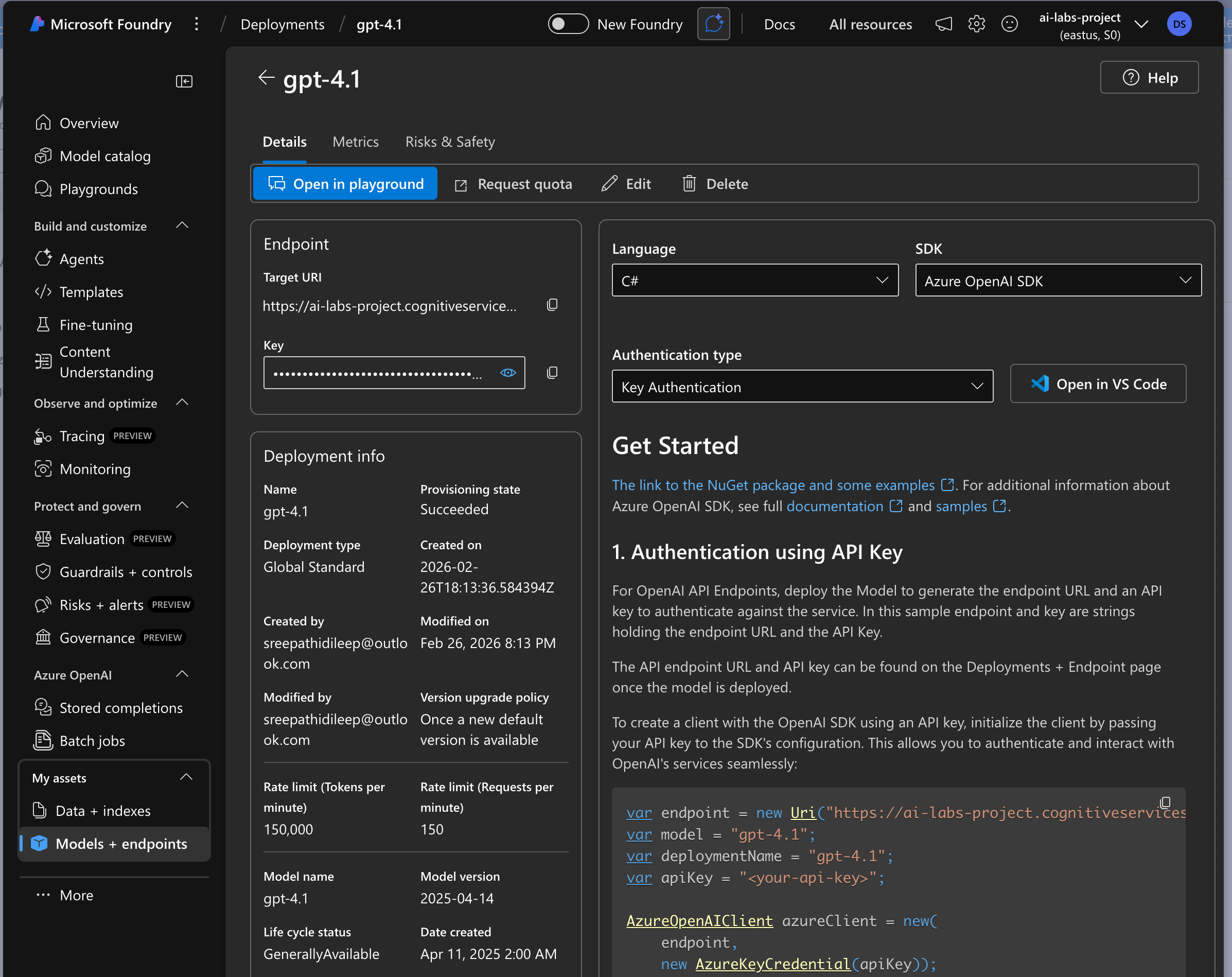
In the practical example below, Uploading a single PDF file to Azure Blob Storage and importing it to Azure AI Search with an indexes. The LLM model is deployed on Azure AI Foundry, accessed via API URL and KEY. We use the chat completion feature in Azure OpenAI SDK.
Blob Storage:
Azure AI Search:
Azure AI Foundry: using gpt-4.1 LLM model
Practical Demo :
using OpenAI.Chat;
using Azure;
using Azure.AI.OpenAI;
using Azure.AI.OpenAI.Chat;

#pragma warning disable AOAI001

// Azure OpenAI configuration
var endpoint = new Uri("https://ai-labs-project.cognitiveservices.azure.com/");
var deploymentName = "gpt-4.1";
var apiKey = "8Pio3V4acuKq6M1BbSbIJ50YQ3D8IIpacjLpPLs0TJJtqLamflYYJQQJ99CBACYeBjFXJ3w3AAAAACOGdij7";

// Azure AI Search configuration
var searchEndpoint = "https://ragpdf.search.windows.net";
var searchApiKey = "NJiH9F3ZQCwrCib3K7C5AMH2IJsF1ocJVoGcwcWjzWAzSeC6dTAR";
var searchIndexName = "ragskills";

AzureOpenAIClient azureClient = new(
    endpoint,
    new AzureKeyCredential(apiKey));

ChatClient chatClient = azureClient.GetChatClient(deploymentName);

var chatCompletionOptions = new ChatCompletionOptions();
chatCompletionOptions.AddDataSource(new AzureSearchChatDataSource()
{
    Endpoint = new Uri(searchEndpoint),
    IndexName = searchIndexName,
    Authentication = DataSourceAuthentication.FromApiKey(searchApiKey),
});

List<ChatMessage> messages = new List<ChatMessage>()
{
    new SystemChatMessage("You are a helpful assistant. Use the provided data source to answer questions."),
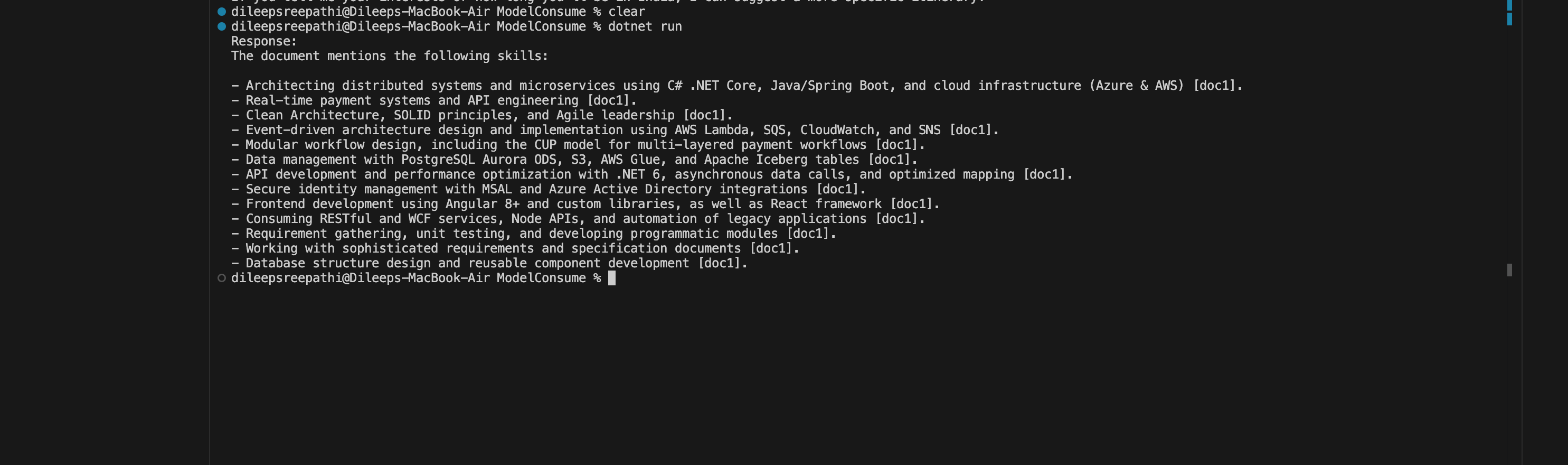
    new UserChatMessage("What skills are mentioned in the documents?"),
};

var response = chatClient.CompleteChat(messages, chatCompletionOptions);

// Print the main response
Console.WriteLine("Response:");
Console.WriteLine(response.Value.Content[0].Text);
Output: I have uploaded the PDF file containing the skills section, which is the same section we are querying.
By combining Azure AI Search with the power of LLMs in Azure AI Foundry, we move beyond generic AI. We create a specialized system that knows your business, respects your data privacy, and provides grounded, accurate answers.