

Where We Left Off
In Part 1 we built a tiny MCP server that exposes a CalculatorTool.Add method.
In Part 2 we built an MCP client that connects to that server, discovers its tools, and calls them manually — you wrote CallToolAsync(”add”, {a:5, b:8}) explicitly in code.
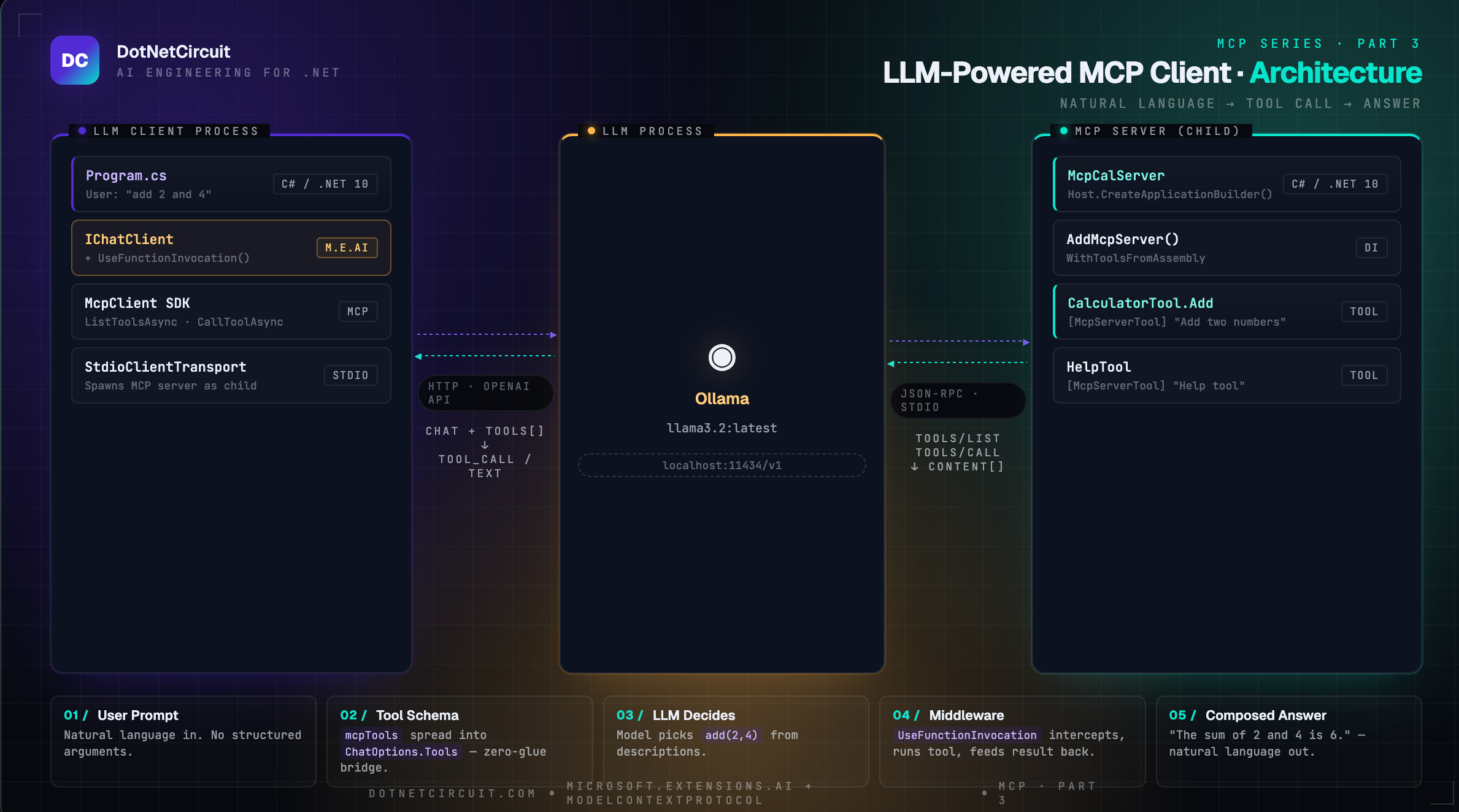
That works, but it’s you doing the thinking. The whole point of MCP is to let an LLM do the thinking. This article wires them together: a user types natural language, the LLM decides which tool to call and with what arguments, and the result flows back into the model’s final answer.
Three things happen that didn’t happen in Part 2:
1. The LLM reads the tool descriptions and decides it needs to call add.
2. The UseFunctionInvocation() middleware intercepts the LLM’s tool-call request, executes the MCP tool, and feeds the result back to the LLM — all without you writing any loop.
3. The LLM composes the final answer from the tool result.
Prerequisites
Same as Part 2, plus one addition:
- .NET 10 SDK — [Download here](https://dotnet.microsoft.com/download)
- McpCalServer from Part 1 (already built)
- Ollama installed and running locally — [ollama.com](https://ollama.com)
- Pull the model: ollama pull llama3.2:latest
- Confirm it’s running: ollama serve (default port 11434)
> Why Ollama? It exposes an OpenAI-compatible REST API at http://localhost:11434/v1, so you can use the standard OpenAI client — no API key, no cloud, no cost. Swap it for Azure OpenAI or OpenAI proper by changing one URL.
Step 1: Create the Project
dotnet new console -n llm-client
cd llm-client
Install the packages:
dotnet add package Microsoft.Extensions.AI --prerelease
dotnet add package Microsoft.Extensions.AI.OpenAI --prerelease
dotnet add package ModelContextProtocol --prerelease
dotnet add package Microsoft.Extensions.Hosting
Your .csproj will look like this:
<Project Sdk="Microsoft.NET.Sdk">

  <PropertyGroup>
    <OutputType>Exe</OutputType>
    <TargetFramework>net10.0</TargetFramework>
    <RootNamespace>llm_client</RootNamespace>
    <ImplicitUsings>enable</ImplicitUsings>
    <Nullable>enable</Nullable>
  </PropertyGroup>


 <ItemGroup>
    <PackageReference Include="Microsoft.Extensions.AI" Version="10.*-*" />
    <PackageReference Include="Microsoft.Extensions.AI.OpenAI" Version="10.*-*" />
    <PackageReference Include="Microsoft.Extensions.Hosting" Version="9.*-*" />
    <PackageReference Include="ModelContextProtocol" Version="0.*-*" />
  </ItemGroup>
</Project>
Two package families are in play here:
ModelContextProtocol : Speaks MCP — connects to the server, lists tools, calls them
Microsoft.Extensions.AI : .OpenAI Speaks to LLMs — abstracts chat clients, handles function-calling loops
Step 2: Write the LLM Client
Replace Program.cs with:
using Microsoft.Extensions.AI;
using ModelContextProtocol.Client;
using ModelContextProtocol.Protocol;
using OpenAI;
using System.ClientModel;
using System.Text.Json;

// Connect to Ollama via its OpenAI-compatible API
var openAiClient = new OpenAIClient(new ApiKeyCredential("ollama"), new OpenAIClientOptions
{
    Endpoint = new Uri("http://localhost:11434/v1")
});

IChatClient client = new ChatClientBuilder(openAiClient.GetChatClient("llama3.2:latest").AsIChatClient())
    .UseFunctionInvocation()
    .Build();

var clientTransport = new StdioClientTransport(new()
{
         Name = "Calculator Server",
        Command = "dotnet",
        Arguments = ["run", "--project", "../McpCalServer.csproj"]
});

Console.WriteLine("Setting up stdio transport");

await using var mcpClient = await McpClient.CreateAsync(clientTransport);

Console.WriteLine("Listing tools");
var mcpTools = await mcpClient.ListToolsAsync();
foreach (var tool in mcpTools)
{
    Console.WriteLine($"Connected to server with tools: {tool.Name}");
    Console.WriteLine($"Tool description: {tool.Description}");
}

// Use MCP tools directly — McpClientTool implements AITool
var chatOptions = new ChatOptions
{
    Tools = [.. mcpTools]
};

var userMessage = "add 2 and 4";
Console.WriteLine($"User: {userMessage}");

var response = await client.GetResponseAsync(userMessage, chatOptions);

// Check if any tool calls were made
foreach (var message in response.Messages)
{
    foreach (var content in message.Contents)
    {
        if (content is FunctionCallContent functionCall)
        {
            Console.WriteLine($"[TOOL CALLED] {functionCall.Name}({string.Join(", ", functionCall.Arguments?.Select(a => $"{a.Key}={a.Value}") ?? [])})");
        }
        else if (content is FunctionResultContent functionResult)
        {
            Console.WriteLine($"[TOOL RESULT] {functionResult.Result}");
        }
    }
}

Console.WriteLine($"Assistant: {response.Text}");
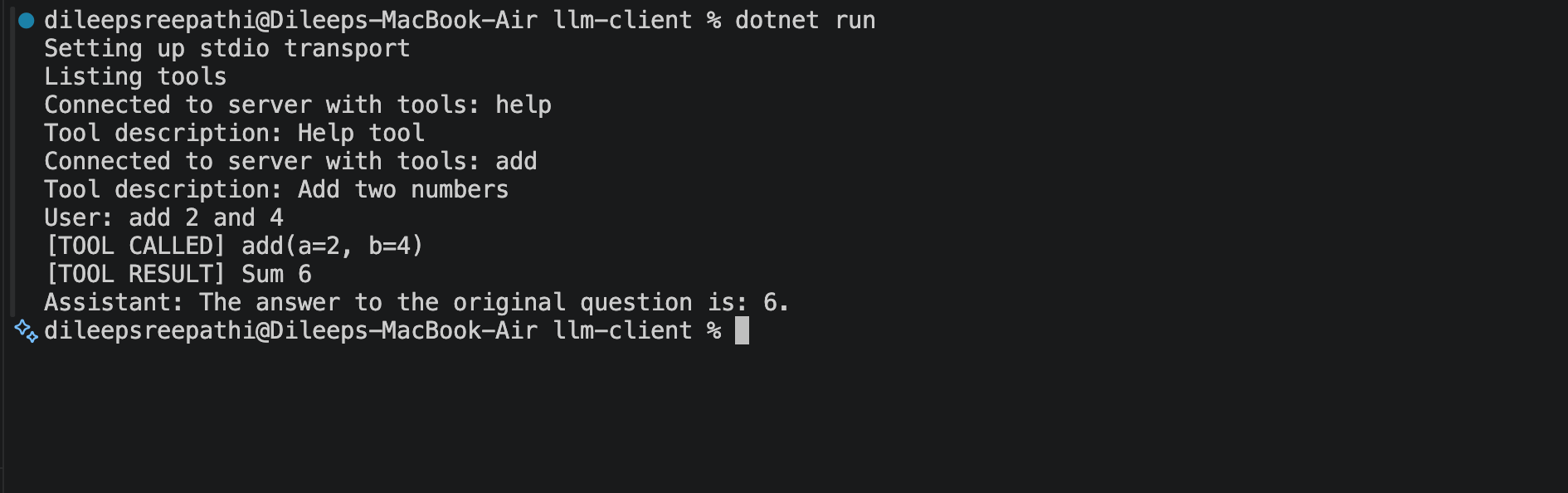
Step 3: Run It
dotnet run
Deep Dive: What’s Actually Happening
The Key Insight: McpClientTool Is an AITool
var chatOptions = new ChatOptions
{
    Tools = [.. mcpTools]
};
mcpTools is IList<McpClientTool>. The McpClientTool type (from the MCP SDK) implements AITool (from Microsoft.Extensions.AI). That’s not an accident — it’s the bridge the two ecosystems share.
When you spread mcpTools into ChatOptions.Tools, the LLM receives the tool’s name, description, and JSON input schema — exactly what it needs to reason about when and how to call it. No manual translation, no custom adapters.
The Agentic Loop: UseFunctionInvocation()
This single line is doing more work than it looks like:
IChatClient client = new ChatClientBuilder(...)
    .UseFunctionInvocation()  // ← this
    .Build();
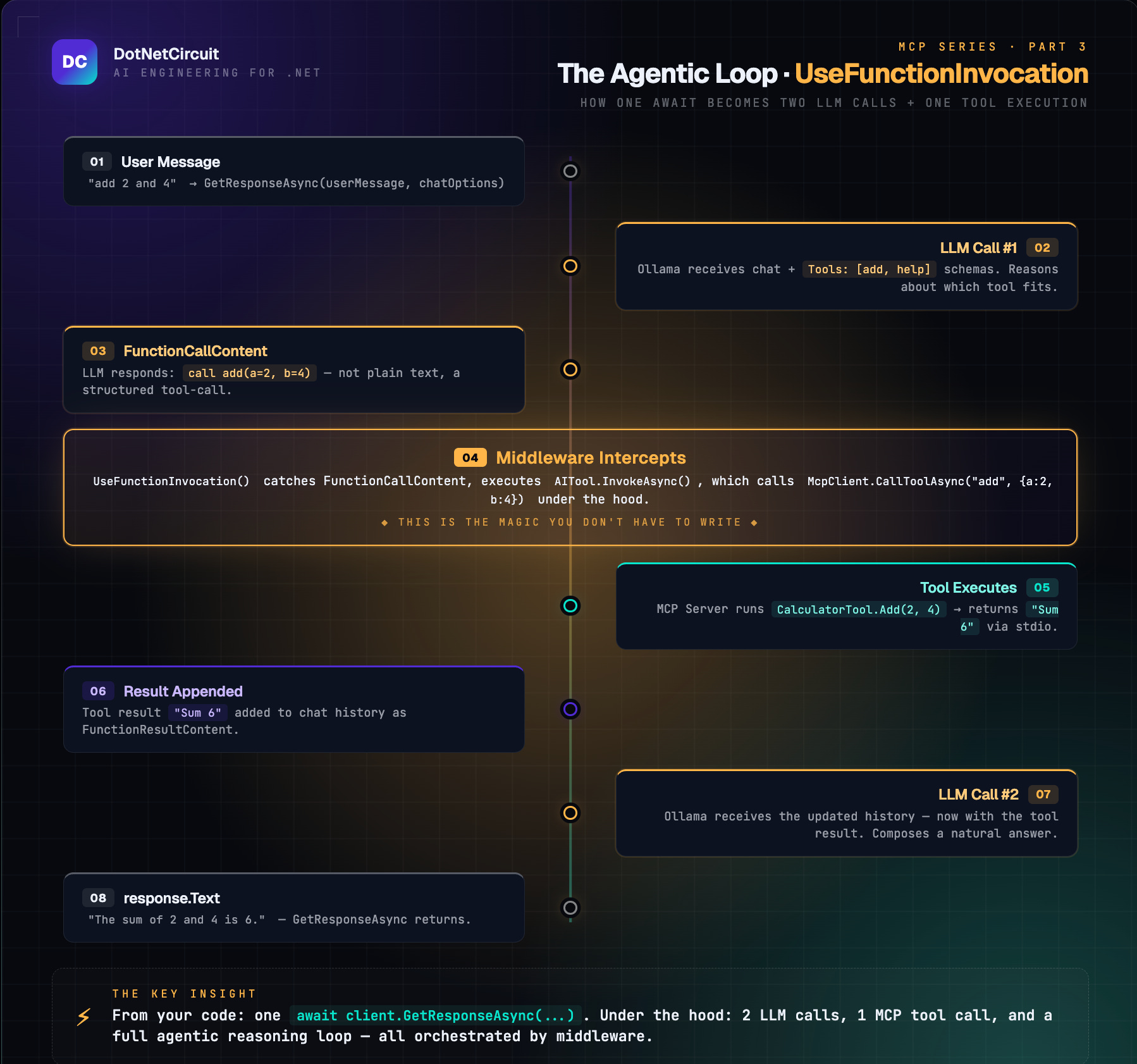
Without it, when the LLM decides to call a tool, GetResponseAsync returns immediately and you get a raw FunctionCallContent in the response — you’d have to execute the tool yourself and call the LLM again. That’s the manual loop from Part 2, applied to the LLM side.
UseFunctionInvocation() installs a middleware that handles that loop automatically:
Reading the Message History
foreach (var message in response.Messages)
{
    foreach (var content in message.Contents)
    {
        if (content is FunctionCallContent functionCall) { ... }
        else if (content is FunctionResultContent functionResult) { ... }
    }
}
response.Messages is the full turn history added during this call — including intermediate tool calls and results. This is useful for:
- Debugging: see exactly which tool the LLM chose and with what arguments.
- Audit trails: log every tool invocation without modifying the tool itself.
- Multi-step reasoning: detect if the LLM called multiple tools in sequence.
response.Text is the convenience shortcut for the final assistant text.
Key Takeaways:
What Why it matters
McpClientTool implements AITool, Zero-glue bridge between MCP and Microsoft.Extensions.AI — spread MCP tools directly into ChatOptions
UseFunctionInvocation() middleware Handles the LLM → tool → LLM loop automatically; you await once
IChatClient abstraction Swap Ollama for Azure OpenAI or Claude
response.Messages Full audit trail of every tool call and result the LLM made
response.Text Final natural-language answer, ready to display
Stdio transport unchanged The LLM layer sits above MCP — the server doesn’t know or care there’s an LLM involved